Team
You can add users to the system and define their access rights.
To manage users in the system, go to the Team section.
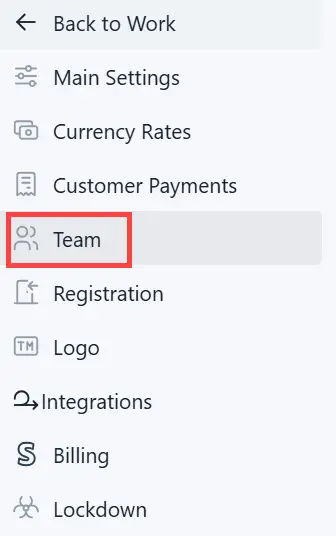
You can do the following:
Add a new user
To add a new user, do the following:
- Click the Add Team Member button.
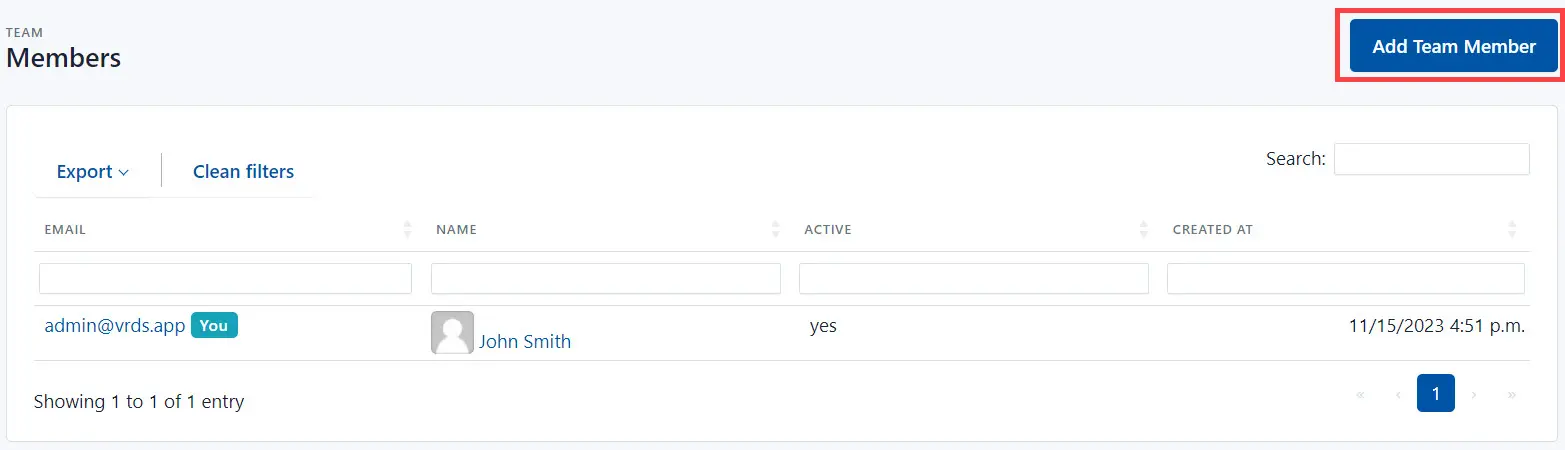
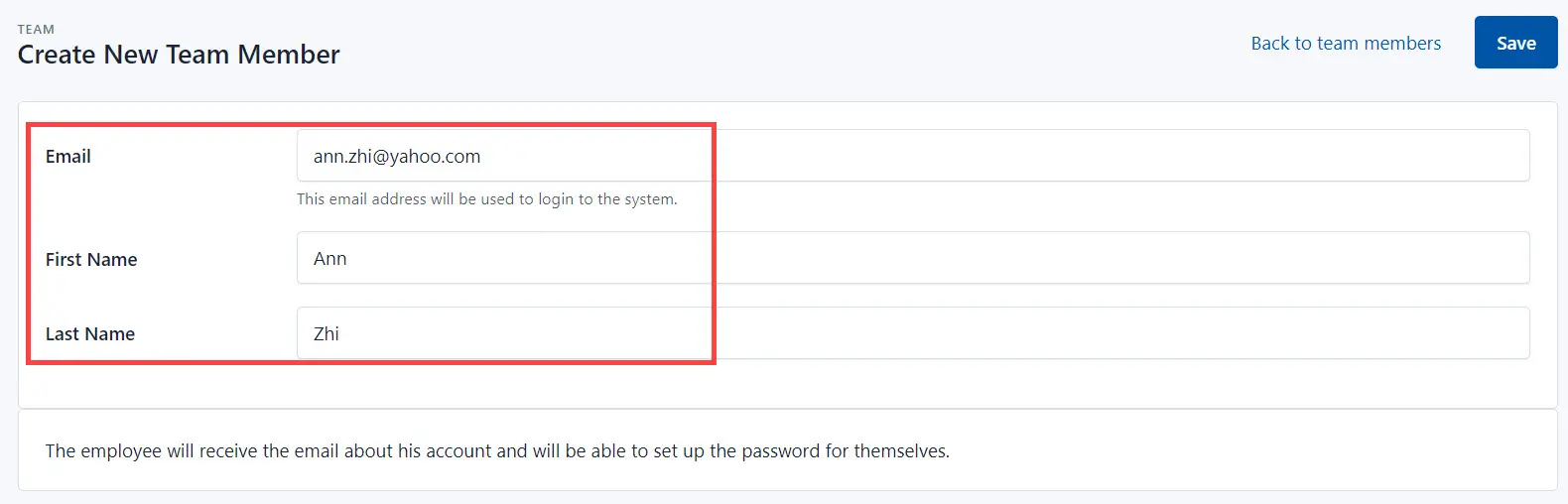
- On the Create New Team Member page:
- Add the user email. At this address, the user will receive a link by which they can independently set their password to the system.
- Add the first and last name.
-
Click the Save button.
-
As a result, the system displays the user page, where you can edit the access rights. Click on the access rights group.
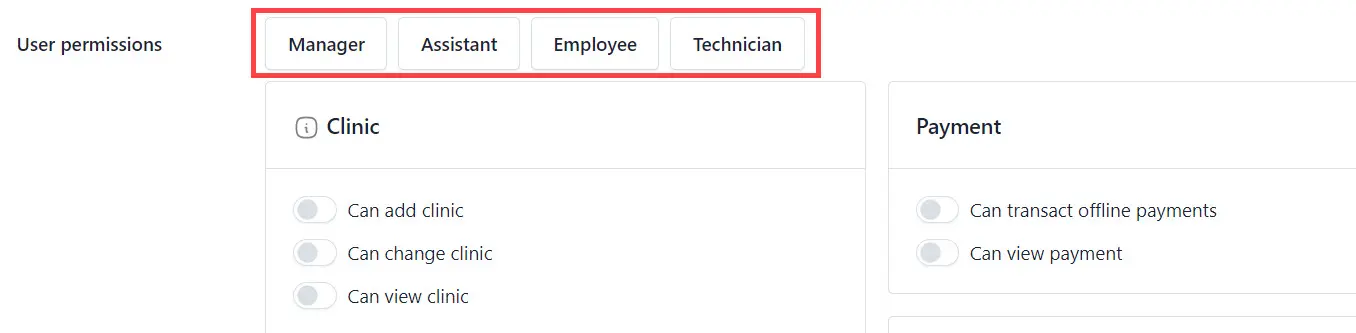
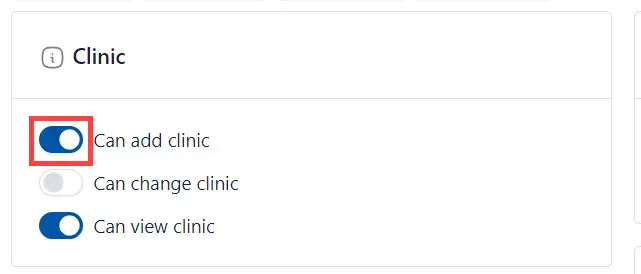
- Click the Save button.
Edit user
To edit the user, click on the user’s name and make changes on the user’s page. Click the Save button to save changes.
Deactivate user
To deactivate the user, do the following:
-
Click on the user’s name you need to deactivate.
-
Click the Deactivate button.
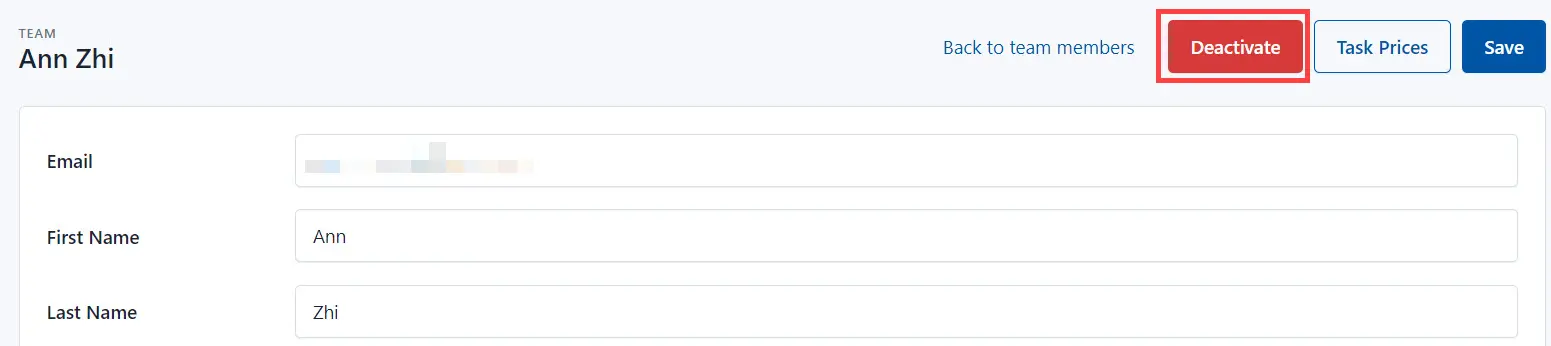
- Click the OK button to confirm your action.